How to Configure Settings and Parameters in Automation Workflows
Last updated: February 2026
Workflow settings and parameters control how each module behaves in your automation, including data limits, retry attempts, and processing rules. Configure these through each module’s settings panel to optimize performance, costs, and reliability.
Automation workflow configuration is the foundation of reliable, efficient automation systems. Whether you’re using Make, N8N, or other platforms, understanding how to properly configure module settings determines whether your workflows run smoothly or fail unexpectedly.
Settings control everything from how much data your workflow processes to how it handles errors and timeouts. Poor configuration leads to unnecessary costs, failed executions, and unreliable automation.
Key Configuration Areas
- Module-specific parameters and limits
- Data processing and filtering rules
- Error handling and retry settings
- Cost optimization controls
- Integration authentication and permissions
Understanding Workflow Building Blocks
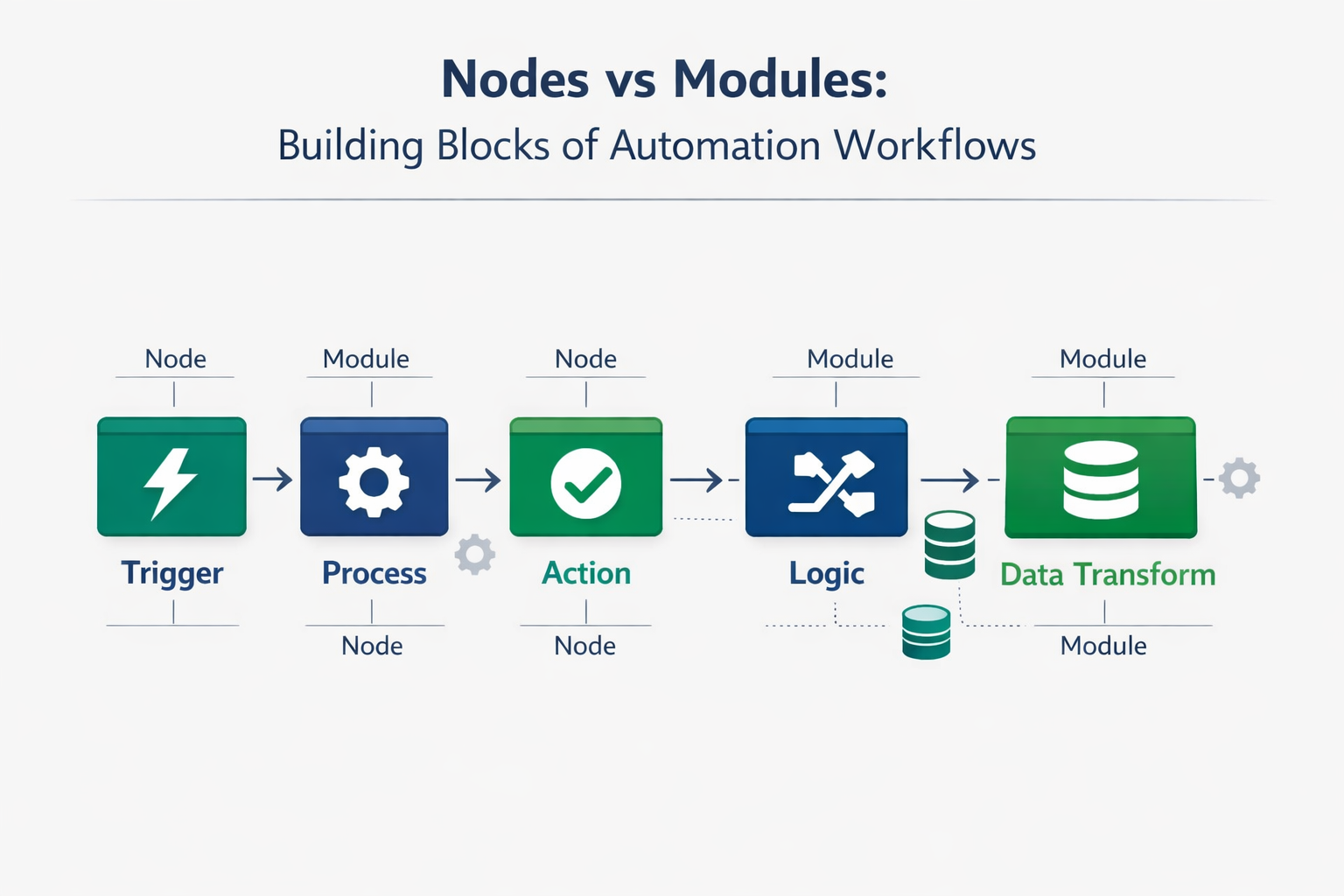
Nodes/Modules
Individual workflow components that perform specific actions. Each node has its own configuration settings that control how it processes data and connects to external services.
Canvas
Visual workspace where you design workflows. Shows data flow, logic connections, and system architecture. The canvas is your blueprint for automation design.
Workflow Types
Basic automation (data movement), AI-intelligent (data transformation), and agentic (multi-step decision making). Each type requires different configuration approaches.
Configuration Process Flow
Select Module Type
Configure Authentication
Set Data Parameters
Configure Error Handling
Test & Optimize
Essential Module Configuration Settings
Data Limits & Filtering
Control how much data each module processes to manage costs and performance.
- Maximum records per execution (e.g., last 50 emails)
- Time-based filters (last 24 hours, past week)
- Conditional filtering rules
- Data field selection and mapping
Error Handling & Retries
Configure how modules respond to failures, timeouts, and API limits.
- Number of retry attempts (typically 2-5)
- Retry delay intervals
- Timeout duration settings
- Error notification preferences
Authentication & Permissions
Set up secure connections and appropriate access levels for external services.
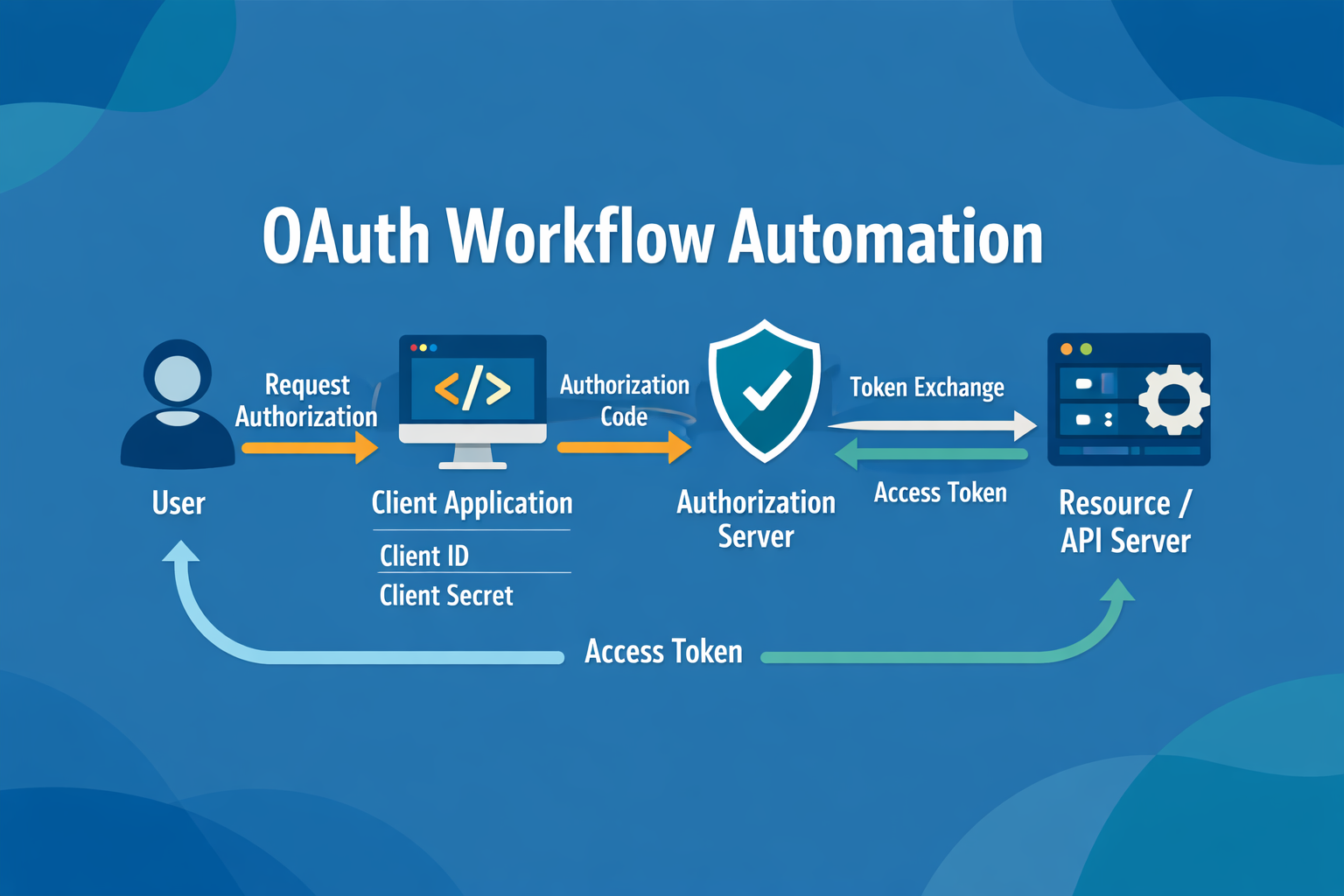
- API keys and OAuth connections
- Service account configurations
- Permission scope limitations
- Connection refresh intervals
Platform-Specific Configuration Differences
| Platform | Settings Location | Key Features | Configuration Style |
|---|---|---|---|
| Make | Module settings panel | Visual interface, pre-built templates | GUI-based forms |
| N8N | Node parameter tabs | Code-friendly, custom functions | JSON/code configuration |
| Zapier | Step configuration screens | Simple setup, limited customization | Wizard-guided setup |
| Power Automate | Action properties pane | Microsoft ecosystem integration | Dynamic expressions |
Implementation Steps
Plan Your Workflow
Map out data sources, transformations, and destinations. Identify required integrations and potential failure points before configuration.
Configure Connections
Set up authentication for all external services. Test connections before building workflows to avoid configuration issues.
Set Data Limits
Configure processing limits to control costs. Start conservative and scale up based on testing results and business needs.
Configure Error Handling
Set retry attempts, timeout values, and notification preferences. Plan for common failure scenarios like API rate limits.
Test Thoroughly
Run multiple test scenarios with different data types and volumes. Verify error handling works as expected.
Monitor & Optimize
Track execution metrics, costs, and failure rates. Adjust settings based on real-world performance data.
Common Configuration Mistakes
| Common Mistake | Best Practice Fix |
|---|---|
| No data processing limits set | Always set reasonable limits (50-100 records for testing) |
| Insufficient retry configuration | Configure 3-5 retries with exponential backoff |
| Missing error notifications | Set up email or Slack alerts for critical failures |
| Hardcoded credentials in workflows | Use secure connection management and environment variables |
| No testing with edge cases | Test with empty data, large datasets, and malformed inputs |
Important:
Always test configuration changes in a development environment first. Production workflow modifications can impact live business processes and cause data loss or system failures.
Example Configuration Scenarios
max_emails: 50
time_filter: “24h”
retry_count: 3
requests_per_minute: 60
delay_between_calls: 1000ms
queue_overflow: “pause”
model: “gpt-4o-mini”
max_tokens: 500
temperature: 0.1
max_file_size: “10MB”
allowed_types: [“pdf”, “docx”]
batch_size: 5
Frequently Asked Questions
How do I know what limits to set for my workflow modules?
Start with conservative limits based on your expected data volume. For email processing, begin with 25-50 emails per run. For API calls, check the service’s rate limits and set your automation to 50-70% of that limit. Monitor execution logs and adjust based on actual performance.
What’s the difference between timeout and retry settings?
Timeout determines how long a module waits for a response before giving up (typically 30-120 seconds). Retry settings control how many times the module attempts the action after a failure (usually 2-5 times). Set timeouts based on expected response times and retries based on service reliability.
How do I configure error handling for critical business processes?
For critical workflows, configure multiple retry attempts with exponential backoff, set up immediate error notifications via email or Slack, implement fallback processes, and create error logs for troubleshooting. Consider adding manual approval steps for high-risk actions.
Can I change module settings after a workflow is already running?
Yes, but changes take effect on the next execution cycle. Stop the workflow, make your changes, test thoroughly, then restart. Some platforms like Make allow changes during execution but recommend pausing active workflows first to avoid data inconsistencies.
How do I optimize workflow settings for cost efficiency?
Set appropriate data limits to avoid processing unnecessary records, configure intelligent filtering to reduce API calls, use batch processing where possible, and monitor execution costs regularly. Choose the most efficient AI models for your use case and avoid over-processing data.
What authentication method should I use for different services?
Use OAuth2 for modern services like Google, Microsoft, and social media platforms. API keys work for simpler integrations. Service accounts are best for enterprise systems. Always use the most secure method available and regularly rotate credentials.
How often should I review and update workflow configurations?
Review configurations monthly for active workflows or when you notice performance issues. Update settings when business requirements change, API limits change, or when adding new data sources. Monitor execution logs weekly to identify potential optimization opportunities.
What happens if I exceed API rate limits in my workflow?
Most platforms will automatically pause and retry after the rate limit resets. Configure longer delays between calls, implement queuing mechanisms, or upgrade to higher-tier API plans. Some services may temporarily block your access, so always respect published rate limits.
How do I troubleshoot workflow configuration issues?
Check execution logs for error messages, test individual modules in isolation, verify authentication credentials are valid, confirm API endpoints are accessible, and ensure data formats match expected inputs. Most platforms provide detailed error logs to help identify configuration problems.
Can I copy configuration settings between similar workflows?
Yes, most platforms allow you to duplicate workflows or export/import configurations. However, always review and adjust settings for the specific use case, as different data sources or destinations may require different parameters. Test thoroughly after copying configurations.
Ready to Optimize Your Automation Workflows?
Proper configuration is the foundation of reliable, cost-effective automation that scales with your business.
Vimaxus AI Automation Solutions
We help SMBs and service providers build reliable, cost-effective automation workflows with proper configuration from day one.
Viktoriia Didur
AI Automation Consultant at Vimaxus
Sources
- Vimaxus internal training materials on workflow configuration
- Make.com platform documentation and best practices
- N8N workflow automation platform guides